When done editing your Word document, run Microsoft’s Accessibility Checker to find any issues.
Important: Documents need to be checked for accessibility every time you make a change. Whether you add an image or remove some text, you will need to run the Accessibility Checker in Word followed by running the Accessibility Report in Adobe Acrobat. Checking for accessibility is an ongoing process!
Make sure you’ve included the following to create an accessible base document:
When done, check your document with Microsoft Office’s accessibility checker tool.
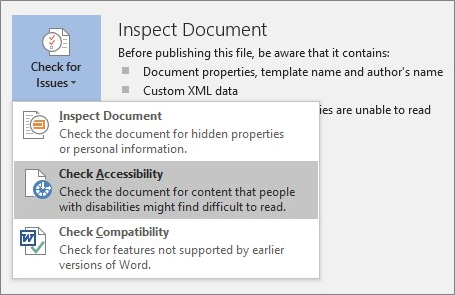
Figure 1
Click File from the tool ribbon.
From Info, click “Check for Issues” to drop down the menu. Select “Check Accessibility.” (See Figure 1.)
In the Accessibility Checker task pane, click on the items under Errors and Warnings for information on how to resolve the issues.
Note: Microsoft’s Accessibility Checker does not follow WCAG standards. Therefore, it is important to review your document based on a checklist that does, such as those previously mentioned by WebAIM and HHS.